Evaluating Sudsy Bubble Foam Soap Procreate Brushes for Digital Art
Digital illustration offers endless possibilities, but replicating organic textures like soap suds and water bubbles can be technically challenging. Artists often spend hours manually painting highlights and shadows to achieve a realistic foamy effect. This is where specialized tools like Sudsy Bubble Foam Soap Procreate Brushes come into play. Designed specifically for the iPad ecosystem, this brush set aims to streamline the creation of soapsuds, foam, and bubble textures, allowing creators to focus more on composition and less on repetitive detailing.
For digital artists, greeting card designers, and social media content creators, understanding the utility and limitations of these brushes is essential before integrating them into a workflow. This evaluation explores what the set offers, how it functions within Procreate, and whether it aligns with specific artistic goals.
Understanding the Toolset
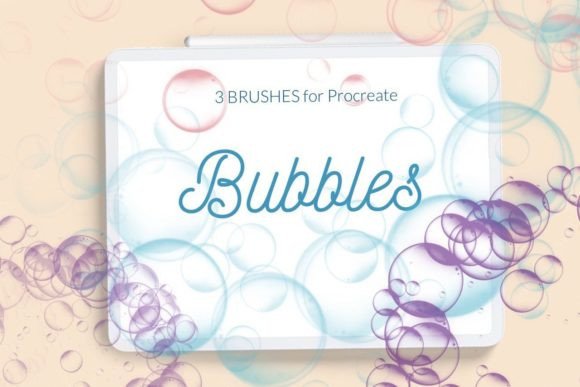
The Sudsy Bubble Foam Soap Procreate Brushes package includes three distinct brushes tailored for creating soapy textures. Unlike standard round or flat brushes, these are engineered to mimic the irregular, translucent, and reflective qualities of real-world foam. The core feature of this set is its pressure sensitivity. When used with an Apple Pencil, the brushes respond to varying levels of pressure, allowing for dynamic control over the density and size of the bubbles.
These tools are versatile in their application. They can function as traditional brushes for painting continuous streams of foam or as stamps for placing individual, detailed bubbles. This dual functionality makes them suitable for a wide range of projects, including digital drawings, greeting cards, wall art, posters, and social media decorations. It is important to note that these assets are exclusively compatible with Procreate on the iPad. They will not function in desktop software like Photoshop or other mobile drawing apps.
Benefits and Practical Applications
The primary advantage of using Sudsy brushes is efficiency. Manually rendering realistic soap bubbles requires a nuanced understanding of light refraction, specular highlights, and transparency. By using pre-configured brushes, artists can achieve these effects instantly. This is particularly beneficial for commercial work where turnaround time is critical, such as creating promotional graphics or holiday-themed greeting cards.
Another significant benefit is consistency. When creating patterns or backgrounds involving repeated bubble motifs, maintaining uniform quality can be difficult by hand. These brushes ensure that each stamp or stroke maintains a high level of detail, providing a professional finish to digital artworks. For beginners, they serve as an educational tool, demonstrating how light interacts with spherical, transparent objects.
The inclusion of pressure sensitivity adds a layer of organic variation. A light touch might produce a faint, misty spray, while heavier pressure generates dense, clustered foam. This responsiveness allows for a more natural look, avoiding the sterile appearance that often plagues digital stamping tools.
Considerations and Tradeoffs
While specialized brushes offer convenience, they also come with tradeoffs. Relying heavily on preset textures can sometimes limit artistic growth. If an artist depends entirely on Soapsuds foam Procreate tools without understanding the underlying principles of rendering transparency, they may struggle when faced with unique lighting scenarios that the brushes do not cover.
Additionally, the specificity of the tool means it has a narrow use case. If your work primarily involves hard-surface modeling, character design, or landscape painting without aquatic or hygienic themes, these brushes may see limited use. They are niche tools designed for specific aesthetic outcomes rather than general-purpose drawing.
Compatibility is another crucial consideration. As noted, these brushes are strictly for Procreate. Users who switch between multiple platforms or prefer desktop-based workflows will find these assets unusable. Furthermore, older versions of Procreate or iPads may require specific installation methods, which can be a hurdle for less tech-savvy users.
Installation Guide for Procreate
Proper installation ensures the brushes function correctly within the app. The process varies slightly depending on your device age and Procreate version. Below are the methods for installing the .brush and .brushset files.
Method for Older iPads or Procreate 4.0 and Earlier
If you are using an older device or an earlier version of the software, follow these steps to import the files:
- Download the folder containing the .brush file to a accessible location on your iPad.
- Open the folder and locate the specific .brush files you wish to install.
- Tap and hold the file with your finger or Apple Pencil to bring up the context menu.
- Select Share from the available options.
- If the option Open in Procreate is not immediately visible, click on More.
- Scroll through the list to find Open in Procreate and select it.
- Once imported, open your project in Procreate and tap the brush icon at the top right corner to access your new tools.
Standard Installation Method
For most current users, the process is more streamlined:
- Open Procreate and navigate to the Brush Library.
- Click on a collection to create a new one, or select an existing folder.
- Choose the Import option.
- Navigate to the folder where you downloaded the brushes and select the desired file.
- The brush will automatically be added to your selected collection in Procreate.
For swatches or palettes included in the download, locate the new palette at the bottom of the Swatches library after installation. This ensures that any color presets associated with the Sudsy Bubble Foam Soap Procreate Brushes are readily available for immediate use.
Making the Decision
Deciding whether to incorporate Sudsy Bubble Foam Soap Procreate Brushes into your toolkit depends on your artistic direction. If you frequently create illustrations involving baths, cleaning products, ocean scenes, or whimsical bubble themes, this set is a strong fit. It reduces manual labor and provides consistent, high-quality results.
However, if you are looking for a general-purpose brush pack or work primarily in non-textural styles, alternatives may be worth considering. General texture brushes or custom-made shapes might offer more flexibility for diverse projects. Always evaluate your current project needs against the specific capabilities of the tool. For those committed to the Procreate ecosystem on iPad, these brushes represent a specialized asset that can significantly enhance specific types of digital artwork.
By understanding both the capabilities and the limitations of these tools, artists can make informed decisions that support their creative workflow. Whether for professional commercial work or personal artistic exploration, the right tools can bridge the gap between concept and execution.