Neon Light Retro Procreate Brushes: Bringing 80s Glow to Digital Art
There is a distinct magic in the way neon light cuts through darkness. It is not just illumination; it is attitude, nostalgia, and energy wrapped in glowing tubes of gas. For digital artists, capturing that specific luminous quality has always been a challenge. Flat colors rarely do justice to the vibrant hum of a retro sign. This is where Neon Light Retro Procreate Brushes change the game. These tools are designed specifically to replicate the electric glow, the soft diffusion, and the sharp core of neon signage directly on your iPad screen.
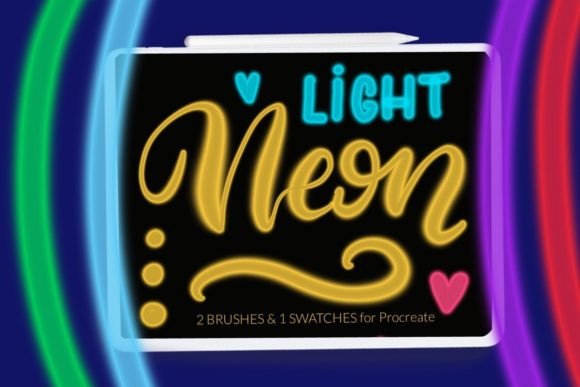
Unlike standard round brushes that require complex layer blending modes and manual opacity adjustments to mimic light, these specialized brushes come pre-configured with contrast settings that simulate the physics of light emission. The pack includes two primary neon light shine brushes tailored for brush lettering and line work, along with a curated color swatch file containing authentic neon hues. Whether you are designing a poster for a synth-wave music event or adding a playful touch to a digital greeting card, these brushes provide an immediate visual impact that flat vectors simply cannot achieve.
Why Digital Artists Are Switching to Neon Effects
The resurgence of 80s and 90s aesthetics has moved beyond fashion and into graphic design. Brands are looking for ways to stand out in crowded social media feeds, and nothing grabs attention quite like a glowing element against a dark background. However, creating realistic neon effects manually is time-consuming. It involves multiple layers, heavy use of Gaussian blur, and careful color selection to ensure the "glow" looks natural rather than muddy.
With Neon Light Retro Procreate Brushes, the workflow is streamlined. The brushes handle the heavy lifting of light simulation. When you draw a line, the brush automatically creates a bright, saturated core with a softer, diffused outer glow. This allows artists to focus on composition and typography rather than technical lighting tricks. It is particularly useful for illustrators who work in dark modes or create night scenes, as the brushes interact beautifully with deep blacks and midnight blues.
Real-World Applications Across Industries
The versatility of these brushes extends far beyond simple doodles. Different professionals can leverage this toolset in unique ways to enhance their portfolios and client deliverables.
- Social Media Managers and Content Creators: In the scroll-heavy world of Instagram and TikTok, static images need to pop. Using neon brush lettering for quotes, announcements, or sale tags adds a dynamic energy that stops the thumb. The high contrast ensures readability even on small mobile screens.
- Greeting Card Designers: Digital greeting cards are becoming increasingly popular for their ease of distribution. A birthday card featuring a glowing "Happy Birthday" script feels personal and celebratory. The neon effect adds a party-like atmosphere that traditional watercolor or pencil textures might miss.
- Poster and Print Artists: For wall art and posters, especially those targeting younger demographics or niche subcultures like gaming and cyberpunk, neon elements provide a modern edge. These designs look stunning when printed on high-gloss paper or displayed on digital frames.
- Brand Identity Specialists: Logos and brand marks often benefit from a retro-futuristic twist. While final logos are usually vector-based, the conceptual phase in Procreate allows for rapid iteration of glowing concepts that can later be refined by graphic designers.
Understanding the Toolset: What Is Included
It is important to understand exactly what you are getting to maximize its potential. This specific pack focuses on precision and color accuracy. You receive two distinct neon light shine brushes. One is optimized for broader strokes and filling, while the other is tuned for finer details and crisp lettering. Both include built-in contrast settings that help the light appear brighter against darker backgrounds.
Additionally, the pack includes a color swatch file. Neon colors are tricky; standard RGB reds and blues often look dull when trying to simulate light. These swatches provide pre-mixed, high-saturation colors that react correctly with the brush engine to produce that authentic electric look. A common misconception is that these packs include background textures. Please note that the brick wall brush is not included in this set. If you want to place your neon signs against a gritty urban backdrop, you will need to source a separate texture brush, which can often be found in specialized texture shops.
Installation Guide for Procreate Users
Getting these brushes into your workspace is straightforward, but the method depends on your iPad model and Procreate version. Since these files are typically in the .brush or .brushset format, here is how you can install them efficiently.
Method 1: For Older iPads or Procreate Version 4.0 and Earlier
If you are using an older device, the direct import feature might not be available. Follow these steps to ensure the files are recognized:
- Download the folder containing the .brush file to a accessible location on your iPad, such as the Files app.
- Open the folder and locate the specific .brush files.
- Tap and hold the file with your finger or Apple Pencil to bring up the context menu.
- Select Share from the options provided.
- Look for the option Open in Procreate. If it is missing, click on More.
- Scroll through the list of apps, find Procreate, and select it.
- Once Procreate opens, navigate to your project. Click on the brush icon at the top right corner to see your new tools added to your library.
Method 2: The Modern Import Method
For most users on recent versions of Procreate, this process is much faster:
- Open Procreate and go to the Brush Library.
- Click on any category to open the brush list, then tap on New Collection or select an existing one.
- Tap Import at the top of the screen.
- Navigate to the folder where you downloaded the brushes.
- Select the .brush or .brushset file. It will automatically be added to your selected collection in Procreate.
Tips for Maximizing Your Neon Art
To get the most out of Neon Light Retro Procreate Brushes, consider the environment in which you are drawing. Neon lights rely on contrast. They look most effective against dark backgrounds. Try starting your canvas with a deep charcoal, navy, or pure black background. This allows the glow effect of the brush to bloom naturally.
Experiment with the pressure sensitivity of your Apple Pencil. Since these brushes are designed for lettering and line work, varying your pressure can create dynamic thickness in your strokes, mimicking the hand-bent glass tubes of real neon signs. Do not be afraid to layer colors. Drawing a pink neon line over a purple glow can create complex, vibrant intersections that add depth to your artwork.
Remember that while these brushes are powerful, they are part of a larger toolkit. Combining them with subtle noise textures or grain overlays can prevent the digital art from looking too clean or sterile, adding a touch of analog warmth to the retro aesthetic. Whether you are a hobbyist looking to spice up your journal or a professional designer crafting campaign visuals, these brushes offer a quick, reliable way to inject energy and nostalgia into your digital creations.