Realistic FUR Brushes 4CLIP STUDIO PAINT: Integrating Specialized Assets into Your Digital Art Workflow
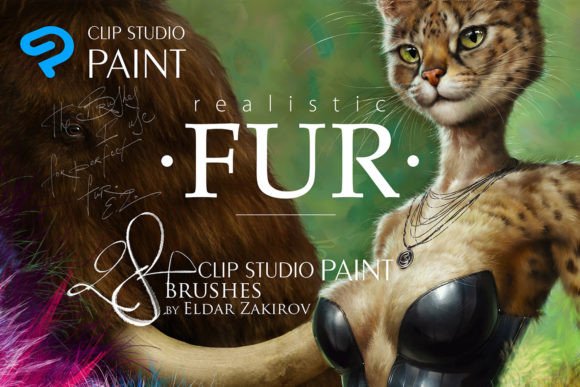
In the realm of digital illustration, particularly when dealing with organic textures like animal fur or fantasy creature coats, efficiency and realism often feel like opposing forces. Artists frequently spend hours manually painting individual strands, struggling to maintain consistency in direction and volume. This is where specialized asset packs become critical components of a professional workflow rather than mere shortcuts. The Realistic FUR Brushes 4CLIP STUDIO PAINT set represents a targeted solution for this specific challenge, designed to streamline the rendering process for fluffy animals, furries, and textured characters without sacrificing artistic control.
Understanding how to integrate these tools requires more than just downloading files; it demands an appreciation for how they fit into the broader pipeline of character design and illustration. Whether you are working in Clip Studio Paint, Manga Studio, or transitioning from other platforms, knowing the technical specifications and practical applications of these brushes ensures they enhance your output rather than disrupt your creative rhythm.
The Architecture of the Brush Set
Before implementing any new tool, it is essential to understand its composition. This particular collection was engineered specifically for version 1.6.3 of Clip Studio Paint, ensuring compatibility with the software’s brush engine capabilities at that stage of development. The core offering includes 28 realistic fur sub-tools, but the utility extends beyond this initial count. Through thoughtful design, brushes 2, 3, and 8 feature dual options for directional hair growth—specifically calibrated for both right and left-directional flow. This adjustment brings the total count to 31 distinct brush sub-tools, providing a comprehensive toolkit for various anatomical curves and lighting scenarios.
The distribution format is designed for immediate integration into a structured digital library. Upon purchase, users receive a ZIP archive containing:
- 31 SUT files: These are the native Clip Studio Paint sub-tool files, organized in a separated directory for easy import.
- Installation PDF: A guide detailing the precise steps to install the brushes into your software, reducing setup friction.
- JPG Reference Table: A visual catalog of all brushes, serving as a quick-reference guide during the creative process so you do not need to test each tool blindly.
It is crucial to note that this specific package is tailored exclusively for Clip Studio Paint. Versions for Photoshop, Procreate, and Affinity Photo/Designer exist separately. Ensuring you are acquiring the correct version for your primary software prevents compatibility issues and wasted resources, as cross-platform brush files are rarely interchangeable due to differences in how each program handles pressure sensitivity, blending modes, and texture mapping.
Strategic Placement in the Creative Pipeline
Integrating the Realistic FUR Brushes 4CLIP STUDIO PAINT set effectively requires identifying where it adds the most value in your workflow. These brushes are not intended to replace foundational sketching or base coloring stages. Instead, they function optimally during the rendering and detailing phases. Using them too early can lead to rigid structures that are difficult to adjust later, while using them too late may result in textures that sit awkwardly on top of flat colors without proper depth.
A recommended approach involves a three-stage process:
- Base Definition: Establish the form and volume of the animal or character using standard hard or soft round brushes. Define the major shadow and light shapes without worrying about individual hairs.
- Directional Mapping: Use the directional variants of brushes 2, 3, and 8 to lay down the primary flow of the fur. This step is critical for establishing anatomy. For instance, fur on a shoulder flows differently than fur on a belly. Selecting the correct left or right directional brush ensures the strokes follow the natural curvature of the body.
- Textural Refinement: Apply the remaining sub-tools to add complexity, flyaways, and clumping effects. This is where the realistic quality emerges, breaking up uniform patterns and adding organic irregularity.
This method ensures that the brushes serve the artwork rather than dictating it. By separating structural planning from textural application, artists maintain control over the final image’s readability and aesthetic balance.
Technical Considerations and Usability
One of the significant advantages of this set is its focus on usability within the Clip Studio Paint environment. The sub-tools are pre-configured with settings that balance opacity, density, and scatter to mimic natural fur behavior. However, effective use requires some familiarity with CSP’s tool property palette. While the defaults are optimized for general use, professional workflows often demand customization based on canvas resolution and desired style.
For example, when working on high-resolution prints, you may need to adjust the brush size limits or density settings to prevent pixelation or excessive clutter. Conversely, for web comics or lower-resolution thumbnails, reducing the scatter can help maintain clarity. The inclusion of the JPG reference table is invaluable here, allowing artists to quickly identify which of the 31 tools best suits the specific texture they are attempting to replicate, whether it be the coarse guard hairs of a wolf or the soft undercoat of a rabbit.
Furthermore, the distinction between right and left-directional brushes addresses a common pain point in digital painting: the unnatural look of mirrored strokes. By providing dedicated tools for both directions, the set eliminates the need to constantly rotate the canvas or flip brush settings, thereby maintaining momentum and reducing repetitive strain during long drawing sessions.
Compatibility and Long-Term Asset Management
Digital assets are investments in your future productivity. The Realistic FUR Brushes 4CLIP STUDIO PAINT set is designed for longevity, but proper management is key. Since the files are provided in a ZIP archive, it is advisable to create a dedicated folder in your cloud storage or local drive for backup purposes. Importing the SUT files into Clip Studio Paint creates a local copy, but having the original archive ensures you can reinstall or transfer the tools to new machines without relying on external download links.
Artists who work across multiple programs should be aware of the ecosystem surrounding this product. While this page focuses on the CSP version, the existence of parallel sets for Photoshop, Procreate, and Affinity indicates a standardized design philosophy. If you collaborate with teams using different software, understanding that these brushes are platform-specific helps in setting expectations regarding file exchange and editing capabilities. You cannot simply send a CSP sub-tool to a Procreate user and expect identical results.
Additionally, the no-return policy associated with digital downloads underscores the importance of verifying your software version before purchase. Since Clip Studio Paint updates frequently, checking that your version supports the features used in 1.6.3 is a prudent step. Most modern versions maintain backward compatibility with sub-tools, but being aware of potential deprecations ensures smooth operation.
Practical Tips for Implementation
To maximize the utility of these brushes, consider the following practical observations derived from professional usage:
- Layer Organization: Keep fur details on separate layers above the base color. This allows you to adjust opacity, blending modes (such as Multiply for shadows or Overlay for highlights), and apply layer masks without affecting the underlying structure.
- Pressure Sensitivity: Ensure your tablet drivers are correctly configured. The realism of these brushes relies heavily on pressure variance to create tapered ends and varied thickness in hair strands.
- Color Variation: Avoid using a single solid color for fur. Sample colors from the underlying base layer and introduce subtle variations in hue and saturation to mimic the way light interacts with real hair.
- Reference Usage: Keep the JPG reference table open on a secondary monitor or printed out. Quick visual identification reduces the cognitive load of searching through menus, keeping you in a state of flow.
By treating the Realistic FUR Brushes 4CLIP STUDIO PAINT set as a specialized instrument within a larger orchestral arrangement of tools, artists can achieve higher quality results with greater efficiency. The focus on directional accuracy, combined with a robust selection of sub-tools, makes this asset pack a valuable addition to any digital illustrator’s library, particularly those specializing in character design and creature concept art.