Unlocking Texture and Style with the Procreate Brushset - Art Brushes
Digital illustration has evolved far beyond flat colors and clean lines. Today, audiences crave depth, tactile sensation, and visual interest that mimics the unpredictability of traditional media. This is where a specialized tool like the Procreate Brushset - Art Brushes becomes indispensable for creators who want to elevate their work without spending hours manually texturing every layer. Whether you are a seasoned professional looking to streamline your workflow or a beginner eager to experiment with mixed-media aesthetics, understanding how to properly integrate these tools into your creative process is crucial.
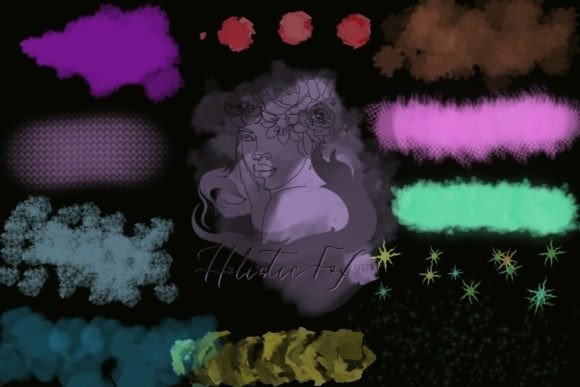
This specific collection offers twenty-seven unique, artistic brushes designed to inject personality into your projects. From glitter effects that catch the digital light to grunge textures that add gritty realism, this set is built for versatility. However, simply downloading a brush pack does not guarantee masterpiece results. Many artists overlook the nuances of installation, compatibility, and application, leading to frustration rather than inspiration. Let’s explore how to get the most out of this resource while avoiding common pitfalls.
Avoiding Installation and Compatibility Errors
The first hurdle many users face is not artistic, but technical. A frequent mistake involves misunderstanding the file format and installation process. The Procreate Brushset - Art Brushes comes as a .brushset file. This is a proprietary format exclusive to Procreate on iPad. Attempting to open this file on a desktop computer, an Android tablet, or within other drawing applications like Photoshop or Clip Studio Paint will result in errors or unreadable data.
To ensure a smooth setup, download the zip file directly onto your iPad or use AirDrop to transfer it from your Mac. Once the file is on your device, tap it to open. If Procreate is installed, it should automatically prompt you to import the set. If you try to unzip the file using third-party apps before importing, you might accidentally separate the individual brush files, losing the organized library structure. Keeping the .brushset intact ensures that all twenty-seven brushes appear together in your Brush Library, ready for immediate use.
Another overlooked detail is version compatibility. While this set is designed for all versions of Procreate, using an severely outdated app version can sometimes cause rendering issues with complex brush engines. Always ensure your Procreate app is updated to the latest stable release to experience the full range of texture and pressure sensitivity features embedded in these brushes.
Misunderstanding Brush Behavior and Settings
Once installed, a common error is assuming that every brush will look exactly like the preview images found in marketing materials. It is important to note that preview images are not included in the zip file. This means you must rely on your own experimentation to understand how each brush behaves. Artists often make the mistake of using these brushes at default settings without adjusting for their specific canvas size or resolution.
For instance, a grunge texture brush might look subtle on a small sketch but appear overly aggressive and pixelated on a large, high-resolution print file. Conversely, a glitter brush might seem sparse on a large canvas if the spacing and scatter settings are not tweaked. To avoid this, create a test sheet. Dedicate a layer to trying each of the twenty-seven brushes at various opacities and flow levels. Pay attention to how they respond to Apple Pencil pressure. Some brushes are designed for heavy hand pressure to reveal texture, while others work best with a light touch for delicate overlays.
Furthermore, do not limit these tools to just one type of project. The description highlights that these brushes are "funky" and "fun," which might lead some users to dismiss them as suitable only for casual doodles. In reality, these textures are powerful assets for professional branding, social media graphics, and editorial illustrations. A subtle grunge overlay can add sophistication to a minimalist logo, while glitter accents can enhance product mockups for beauty brands. The key is moderation and context.
Optimizing Workflow and File Management
Efficiency is vital for freelancers and small business owners who manage tight deadlines. A frequent oversight is failing to organize these new brushes within the Procreate interface. After importing, the Procreate Brushset - Art Brushes will appear in your Brush Library. If you leave them in the default "Imported" group, they can get lost among dozens of other downloads. Take a moment to create a dedicated group or move them to a frequently used section. This small organizational step saves valuable time during client projects when you need to switch quickly between a standard inking brush and a textured filler.
Additionally, consider the layering order when applying these textures. Beginners often paint textures on the same layer as their base colors, which makes editing impossible later. Instead, use separate layers for your grunge or glitter effects. Set the blending mode to Multiply for shadows and dirt, or Screen and Add for light and sparkle. This non-destructive approach allows you to adjust opacity, erase mistakes, or change colors without affecting your underlying artwork. It also gives you the flexibility to toggle effects on and off to see what truly enhances the composition.
Evaluating Value and Creative Application
When deciding whether this brush set fits your needs, look beyond the number of brushes. Twenty-seven might seem modest compared to packs containing hundreds, but quality outweighs quantity. These brushes are curated to be distinct from one another, reducing decision fatigue. Each brush serves a specific purpose, from creating interesting backgrounds to adding stylistic flourishes.
To maximize value, challenge yourself to use at least three different brushes from the set in your next project. Try combining a grunge background with a clean vector-style foreground to create contrast. Use the glitter brushes sparingly to highlight focal points rather than covering the entire image. By treating these tools as strategic design elements rather than mere decorations, you enhance the overall communication of your art.
Remember, digital brushes are tools, not crutches. They cannot fix poor composition or weak color theory. However, when used by an informed artist who understands their mechanics, the Procreate Brushset - Art Brushes can significantly speed up the texturing process and add a unique signature style to your portfolio. Take the time to learn their quirks, organize your library, and experiment with blending modes. With these practices in place, you will find that adding light, texture, and style to your next project becomes not just easier, but genuinely enjoyable.